
If you are searching for how to fix slow startup Windows problems, you are not alone. Few things are more annoying than pressing the power button and then staring at a spinning circle for two or three minutes. The good news is that a slow boot is rarely a sign that your PC is dying. In most cases it comes down to too many apps launching at once, a tired hard drive, or one setting that needs a small tweak.
This guide walks through eight fixes in the order we recommend trying them, starting with the quickest. Each one works on both Windows 11 and Windows 10, and you do not need any special software. Set aside about 30 minutes, restart after each fix, and you will usually find the culprit long before you reach the end of the list.
Table of Contents
Why Is Windows So Slow to Start?
Windows does a lot of work between the moment you press the power button and the moment you can use the desktop. It loads system files, starts drivers, signs you in and then launches every app that is set to open automatically. If any one of those stages is slow, the whole process drags. The most common reasons are:
- Too many startup apps competing for the CPU and disk at the same moment
- An old mechanical hard drive (HDD) instead of a solid-state drive (SSD)
- A system drive that is almost full, which leaves Windows little room to work
- Pending updates, or a stuck update that keeps trying to finish in the background
- Malware or unwanted software running quietly behind the scenes
- Corrupted system files or outdated drivers
Knowing the likely cause saves time. If your laptop is slow all day and not just at boot, our guide on why your laptop is so slow covers the wider performance fixes. This article stays focused on the boot process only.
How to Check How Long Your Startup Takes
Before you change anything, get a baseline so you can tell whether a fix actually helped. Restart your PC and time it with your phone, from the moment you choose Restart until the desktop is ready and the busy circle next to the mouse disappears. Write the number down.
You can also open Task Manager (press Ctrl + Shift + Esc) and look at the Startup apps tab. On many Windows builds it shows a Last BIOS time figure. That is the part of the boot spent before Windows even begins loading, so if the number is high, the delay sits in your firmware and not in Windows itself.
How to Fix Slow Startup Windows: 8 Fixes That Work
Fix 1: Disable Startup Apps You Do Not Need
This is the single biggest win for most people. Every app that launches at sign-in adds to the load, and many programs add themselves to startup without asking. Chat apps, game launchers, cloud drives and printer utilities are common offenders.
- Press Ctrl + Shift + Esc to open Task Manager, then open the Startup apps tab (it is called Startup on Windows 10).
- Sort by Startup impact so the heaviest items appear at the top.
- Right-click any app you do not need at boot and choose Disable.
You can do the same under Settings > Apps > Startup. Microsoft explains both methods in its guide to configuring startup applications in Windows. Disabling an app does not uninstall it, and you can still open it by hand whenever you need it. Leave your antivirus, touchpad driver and audio software alone.
Fix 2: Turn Fast Startup On or Off
Fast Startup is designed to speed up booting by saving part of the system state when you shut down. On some PCs it helps. On others, especially after updates or driver changes, it causes odd delays. It is worth testing both ways.
- Open Control Panel and go to Power Options.
- Click Choose what the power buttons do.
- Select Change settings that are currently unavailable.
- Untick Turn on fast startup (or tick it if it was off), then save the change.
Shut the PC down fully, start it again and compare the time with your baseline.
Fix 3: Install Pending Updates and Restart
A half-finished update can make every boot slow, because Windows keeps trying to complete it. Go to Settings > Windows Update, install anything that is waiting and restart. If updates keep failing, our guide to fixing Windows Update errors walks you through the repair steps.
Fix 4: Scan for Malware
Unwanted software often starts with Windows and quietly eats CPU and disk. Open Windows Security, choose Virus & threat protection and run a full scan. If something seems to hide from the normal scan, pick the Microsoft Defender Antivirus (offline scan) option. It restarts your PC and checks before Windows fully loads, and it takes roughly 15 minutes.
Fix 5: Free Up Disk Space and Check Your Drive
Windows needs breathing room. When your system drive is more than about 90 percent full, everything slows down, startup included. Open Settings > System > Storage and turn on Storage Sense so temporary files are cleared automatically. Then uninstall programs you no longer use and move large videos or archives to an external drive.
Next, check the drive itself. Open Command Prompt as administrator and run chkdsk C: /scan to look for errors without forcing a restart. If you still use a mechanical hard drive, this is also a good moment to think about Fix 8.
Fix 6: Repair System Files with SFC and DISM
Corrupted system files can stall the boot. Two built-in tools can repair them. Open Command Prompt as administrator and run these commands one after the other, waiting for each to finish:
sfc /scannowDISM /Online /Cleanup-Image /RestoreHealth
Restart when both are done. If SFC reports that it repaired files, test your startup time again before moving on to the next fix.
Fix 7: Update Drivers and Firmware
Old or buggy drivers, especially for graphics, storage and the chipset, can add long pauses during boot. Check Windows Update for optional driver updates, then visit your PC maker’s support page for the latest chipset and BIOS versions. Update the BIOS only if the manufacturer lists a fix that matches your problem, and never switch the PC off while the update is running.
Fix 8: Upgrade to an SSD or Add More RAM
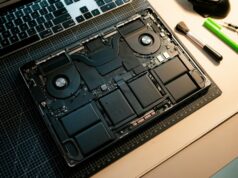
If you have tried everything above and a boot still takes minutes, the hardware may be the limit. Swapping a mechanical hard drive for an SSD is the most effective upgrade you can make, and it often turns a two-minute boot into well under one minute. Check your memory too. Windows 11 runs best with at least 8 GB of RAM, and 4 GB machines struggle as soon as a browser is open.
As a last resort, use Settings > System > Recovery > Reset this PC and choose to keep your files. This reinstalls Windows and removes problem software, but back up your data first.
Quick Summary: Which Fix Takes How Long?
| Fix | Time needed | Difficulty | Best for |
|---|---|---|---|
| 1. Disable startup apps | 5 minutes | Easy | Almost every PC |
| 2. Fast Startup setting | 3 minutes | Easy | Slowdowns after an update |
| 3. Pending updates | 10 to 30 minutes | Easy | Stuck or failed updates |
| 4. Malware scan | 15 to 30 minutes | Easy | Unexplained slowdowns |
| 5. Disk space and chkdsk | 15 minutes | Easy to medium | Nearly full drives |
| 6. SFC and DISM | 20 minutes | Medium | Corrupted system files |
| 7. Drivers and BIOS | 20 minutes | Medium | Old or new hardware |
| 8. SSD, RAM or reset | 1 to 2 hours | Medium | Older machines |
How to Keep Windows Starting Fast
Once your PC boots quickly again, a few habits keep it that way:
- Review your startup apps every few months, because new software loves to add itself.
- Choose the custom install option when a setup wizard offers it, so you can untick bundled extras.
- Keep at least 15 to 20 percent of your system drive free.
- Restart the PC once a week instead of leaving it asleep for weeks at a time.
- Keep Windows and your drivers updated, and avoid “PC booster” tools that promise miracles.
Frequently Asked Questions
How long should Windows take to start?
A modern PC with an SSD usually reaches a usable desktop in under a minute. Older machines with a hard drive can take two to three minutes. What matters most is whether your time is noticeably worse than it used to be, because that points to a fixable cause.
Is it safe to disable startup apps?
Yes, for most apps. Disabling only stops them from opening on their own. Keep your security software, drivers and anything your work depends on, and switch off the rest.
Why is Windows 11 slow to start after an update?
The first boot after a big update often takes longer because Windows finishes background tasks. If every boot stays slow for several days, work through the fixes above, beginning with startup apps and Fast Startup.
Does a slow startup mean my PC is failing?
Not usually. Software causes most slow boots. Frequent crashes, loud drive noises or blue screens alongside the slowdown are a better sign of failing hardware, and in that case you should back up your files right away.
Final Thoughts
Learning how to fix slow startup Windows issues does not take technical skill, just a little patience and a willingness to test one change at a time. Start with startup apps, check the Fast Startup setting, and keep your system updated and clean. If the boot is still slow after all eight fixes, an SSD is the upgrade most likely to make a real difference. Got a related problem? Our guide on fixing sound not working on Windows is another common repair that follows the same step-by-step approach.